
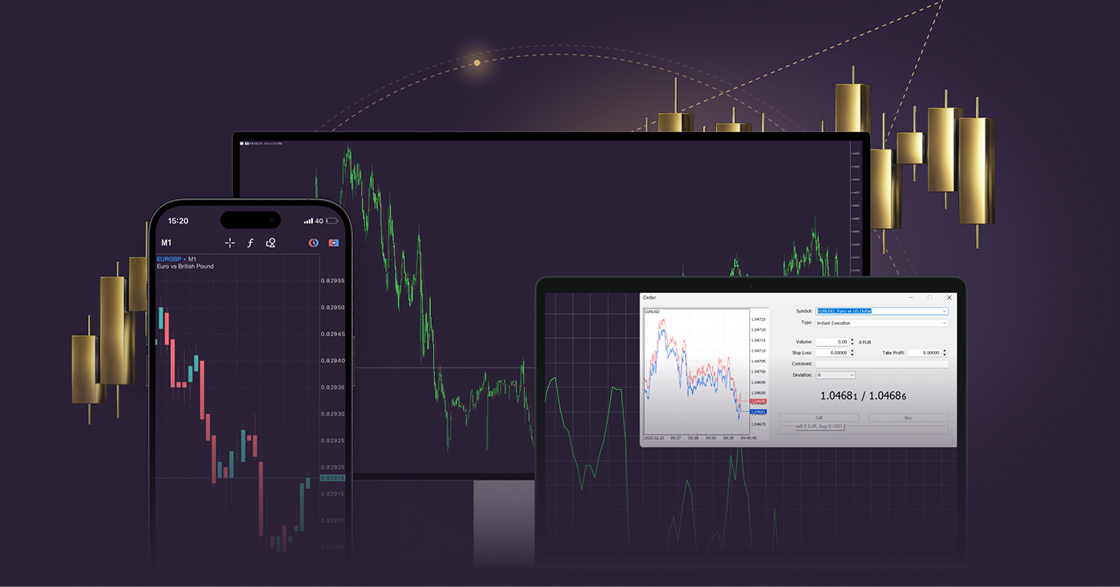
Forex trading has grown into one of the most actively pursued financial activities across the globe. Traders at every experience level are looking for reliable platforms that combine advanced tools with a smooth, intuitive experience. The xlence metatrader 5 platform has emerged as a strong choice for those who want a professional-grade trading environment without the steep learning curve. Whether you’re placing your first trade or refining a long-standing strategy, understanding how to get started with this platform can make a significant difference in how confidently you operate.
This guide walks you through everything you need to know—from account setup and platform navigation to charting tools, order types, and common questions traders ask when starting out.
What Makes MetaTrader 5 the Platform of Choice for Forex Traders?
MetaTrader 5 is widely recognized as one of the most feature-rich trading platforms available. It supports multi-asset trading, meaning traders aren’t limited to forex alone. Stocks, commodities, and indices can all be accessed from a single interface. The platform’s architecture is built for speed and precision—two qualities that matter enormously in a market where conditions can shift within seconds.
For traders using Xlence, MetaTrader 5 provides a familiar yet powerful environment. The platform’s charting engine supports multiple timeframes simultaneously, which is particularly useful for traders who rely on multi-timeframe analysis to time their entries and exits.
How Does the Platform Handle Multiple Asset Classes?
MetaTrader 5 separates itself from earlier versions by offering a depth-of-market (DOM) feature and a built-in economic calendar. Traders can watch live price movements and access fundamental data without switching between windows or external tools. This integration reduces friction and keeps attention focused where it matters most—the chart and the trade.
The hedging and netting account modes are both available, giving traders the flexibility to manage positions in a way that aligns with their individual strategy.
How to Set Up Your Xlence MetaTrader 5 Account
Setting up an account is straightforward. The process begins with registration on the Xlence website, where traders complete identity verification as part of standard compliance procedures. Once the account is approved, login credentials for MetaTrader 5 are issued.
What Steps Are Involved in Downloading and Installing the Platform?
After receiving credentials, the next step is downloading the MetaTrader 5 desktop client. The platform is available for Windows, macOS, and mobile devices running iOS and Android. Installation takes only a few minutes, and the interface loads cleanly on first launch.
To log in, traders select “File” from the top menu, choose “Login to Trade Account,” and enter the account number, password, and server name provided by Xlence. A successful connection is confirmed by a small green icon in the bottom-right corner of the platform.
Navigating the MetaTrader 5 Interface
The MetaTrader 5 interface is divided into several key panels, each serving a specific purpose. Understanding the layout early on prevents confusion and helps traders work more efficiently.
Market Watch Panel: Displays live bid and ask prices for all available instruments. Right-clicking within this panel allows traders to open charts, place orders, or customize the list of displayed assets.
Navigator Panel: Houses trading accounts, indicators, expert advisors, and scripts. Indicators can be dragged directly from the Navigator onto any chart.
Chart Window: The central workspace where price action is visualized. Traders can apply indicators, draw trendlines, and switch between timeframes with a single click.
Terminal Panel: Located at the bottom of the screen, this panel shows open trades, account history, alerts, and the built-in journal.
How Can Traders Customize Charts for Better Analysis?
MetaTrader 5 offers extensive chart customization. Right-clicking on a chart opens a properties menu where traders can adjust colors, grid visibility, candle styles, and chart scaling. Templates can be saved once a preferred layout is configured, allowing that exact setup to be applied to any chart with a single click.
The platform supports over 80 built-in technical indicators, ranging from moving averages and Bollinger Bands to MACD and the Ichimoku Kinko Hyo system. Additional custom indicators can be imported and installed through the MQL5 marketplace.
Understanding Order Types in Forex Trading on MetaTrader 5
One of the platform’s practical strengths is its range of order execution options. Traders are not limited to basic market orders—the platform supports several execution types that allow for more precise trade management.
Market Order: Executes immediately at the current market price.
Limit Order: Executes only when price reaches a specified level, useful for entering at a better price than currently available.
Stop Order: Activates when price reaches a trigger point, commonly used for breakout strategies.
Stop Limit Order: A two-step order that combines stop and limit conditions for more controlled entries.
To place an order, traders press F9 or click “New Order” in the toolbar. The order window allows selection of instrument, volume, stop loss, take profit, and order type before confirmation.
How Should Traders Use Stop Loss and Take Profit Levels?
Stop loss and take profit levels are essential components of responsible trade management. A stop loss defines the maximum loss a trader is willing to accept on a position, while a take profit locks in gains when price reaches a target. Both can be set directly in the order window or modified afterward by right-clicking a trade in the Terminal panel and selecting “Modify or Delete Order.”
Consistent use of these tools reflects disciplined trading practice and reduces the emotional burden of monitoring every price movement manually.
Using Expert Advisors and Automated Trading
MetaTrader 5 supports automated trading through Expert Advisors (EAs), which are programs written in the MQL5 language. EAs can execute trades, manage positions, and run strategies around the clock without requiring manual intervention.
How Do Traders Install and Run an Expert Advisor on MetaTrader 5?
Installing an EA involves placing the file in the correct folder within the platform’s data directory. Traders access this folder through “File” > “Open Data Folder” > “MQL5” > “Experts.” After placing the file, the platform needs to be restarted or the Navigator refreshed. The EA then appears in the Navigator panel and can be dragged onto any chart to activate it.
Automated trading must be enabled globally through the toolbar button labeled “Algo Trading” for any EA to run live. Traders should always test EAs thoroughly using the Strategy Tester before deploying them on a live account.
About Xlence MetaTrader 5
Is MetaTrader 5 suitable for beginners in forex trading?
MetaTrader 5 is built with both beginners and experienced traders in mind. The interface is layered, meaning new users can start with basic charting and order placement while gradually exploring more advanced tools as their confidence grows.
Can MetaTrader 5 be used on a mobile device?
Yes. The MetaTrader 5 mobile app is available for both iOS and Android. It replicates the core functionality of the desktop platform, including live charts, order management, and account monitoring.
What is the difference between a demo account and a live account on Xlence MetaTrader 5?
A demo account operates with simulated funds and mirrors real market conditions. It is ideal for practicing strategies and familiarizing yourself with the platform before committing real capital. A live account involves actual funds and real trade execution.
How many charts can be open simultaneously on MetaTrader 5?
The platform supports up to 100 open charts at one time, allowing traders to monitor multiple instruments and timeframes without needing a separate window for each.
What should a trader do if the platform loses connection?
Reconnection is automatic in most cases. If the issue persists, traders should check their internet connection, verify server settings under “File” > “Login to Trade Account,” or contact Xlence’s support team for assistance.
Build Your Trading Foundation the Right Way
Starting out on Xlence MetaTrader 5 is less about mastering every feature immediately and more about building a reliable foundation. Learn the interface, practice with a demo account, understand how orders work, and develop a consistent approach to charting before scaling up.
The platform rewards traders who take the time to understand its capabilities. From manual trading to automated strategies, the tools available within MetaTrader 5 are designed to support long-term growth. The most effective traders are not those who use every feature—they are those who use the right features, consistently and with intention.
About the Author
